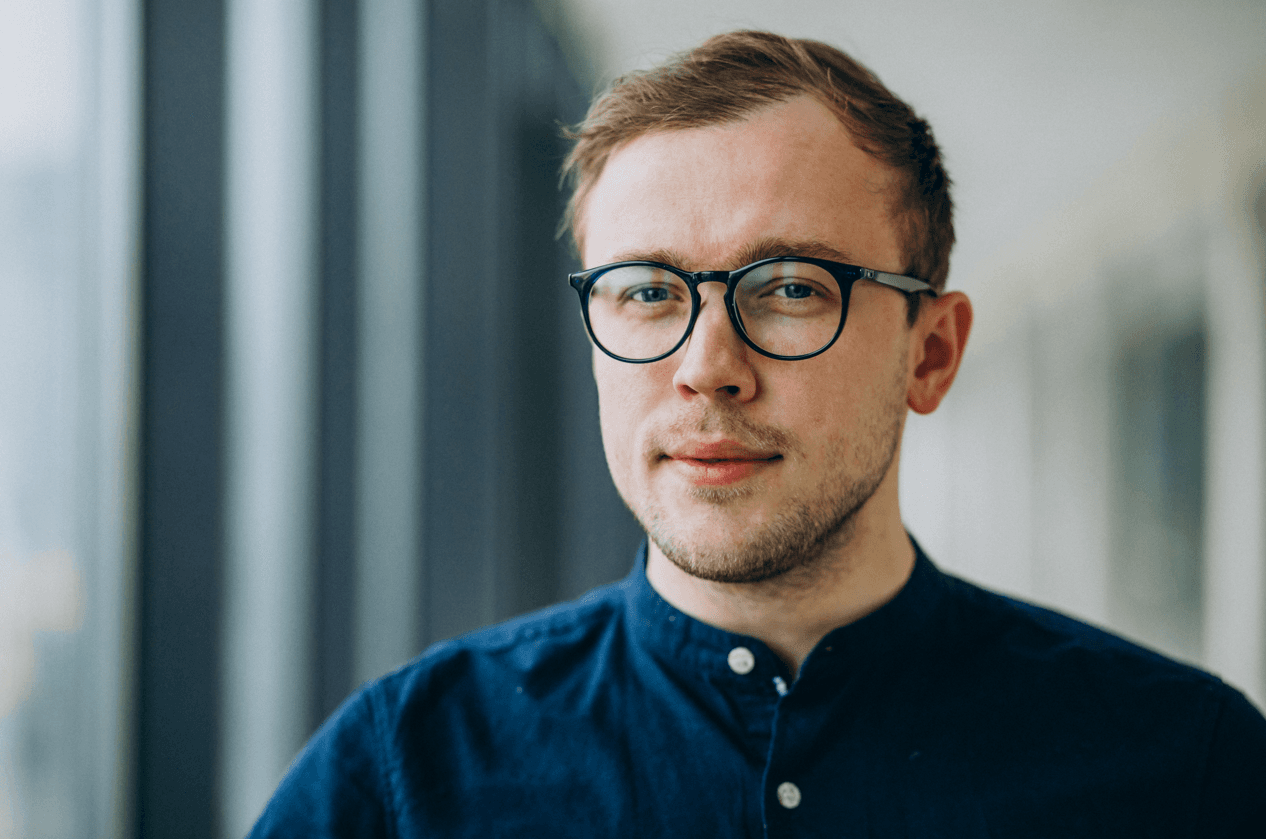

If you are serious about your career in 2026, there is a good chance that people see your LinkedIn profile photo before they see your portfolio, your website, or even your CV. Recruiters scan feeds at speed, clients check your profile in between calls, and colleagues see your face every time you comment or react. In all of those moments, the tiny circle that carries your photo is quietly doing reputational work in the background.
The strange part is that many good professionals still treat the LinkedIn profile picture like an afterthought. They upload an old cropped group photo, something forwarded on WhatsApp, or a screenshot from a talk, and then wonder why it looks blurry, dark, or awkward. Most of the time, the issue is not that the person looks bad; it is simply that the image is the wrong size, the wrong crop, or compressed in the wrong way.
Because we at ProfileMagic spend a lot of time looking at LinkedIn screenshots and AI headshots side by side, we keep seeing the same pattern repeat: strong, credible people undermining themselves because their photo is too small, too loose, or too soft to carry their presence. This guide is our way of taking the boring, technical part and turning it into a clear checklist, so you know exactly what dimensions, crop, file size, and clarity actually work on LinkedIn in 2026.
Once you set this up properly, you can stop worrying about pixels and start focusing on what the photo is really supposed to do, which is help people recognise you and trust you a little more when they see your name.
LinkedIn Profile Photo Specs in 2026 - Quick Reference
Before we talk about cropping and clarity and all the subtle stuff, it helps to get the basic numbers out of the way. LinkedIn does not change its profile photo requirements every month, but it does have a clear set of rules that your image has to respect.
In 2026, the key specs are:
- Minimum size: 400 × 400 pixels. This is the floor. Anything smaller will either be rejected or look soft after LinkedIn processes it.
- Accepted range: From 400 × 400 pixels up to very large resolutions like 7680 × 4320 pixels. That does not mean you need to go that high, it just means there is plenty of headroom.
- Aspect ratio: 1:1 square. LinkedIn stores your photo as a square, even though it displays it in a circle.
- File formats: JPG / JPEG or PNG. Animated formats like GIF are not supported for profile photos.
- Maximum file size: 8 MB. In practice you will usually be well below this if you export correctly.
If you do not want to overthink it, you can follow one simple rule: export a square headshot between 800 and 1000 pixels on each side, save it as a JPG under 1 MB, and you will comfortably sit inside LinkedIn’s requirements while still looking sharp on modern screens.
Dimensions vs Clarity - Why Resolution Matters More Than You Think
A lot of people hear “minimum 400 × 400 pixels” and assume that as long as their photo hits that number, they are safe. Technically that is true, but in real life, the minimum is not the ideal. It is just the lowest bar LinkedIn will accept.
Modern laptops, tablets, and phones have high-density displays that pack a lot of pixels into a small physical space. When you upload a low-resolution photo and LinkedIn scales it and compresses it, tiny details like the texture of your skin, your eyes, and even the edges of your glasses get blurred faster than you expect.
It helps to think of resolution and clarity as a safety margin. If you start from a decent original image and crop it down to a square of around 800-1000 pixels, LinkedIn has enough information to resize and compress without destroying the image. If you start from a small screenshot or a heavily cropped WhatsApp photo, every extra processing step makes things worse.
You will especially notice this in three places:
- On your profile page, where the photo is bigger and any softness is easy to spot.
- Next to your posts in the feed, where people see your photo repeatedly as they scroll.
- In comments and notifications, where your face is reduced to a tiny circle and needs to remain recognisable.
So yes, the number 400 × 400 matters, but in practice it is smarter to aim a little higher and give LinkedIn more to work with.
The Face-in-the-Circle Map - How LinkedIn Actually Crops Your Photo
One of the most common sources of frustration is that you upload a perfect-looking square photo and then LinkedIn cuts off the top of your head or eats into your chin. That happens because LinkedIn stores your image as a square but shows it as a circle.
Imagine your photo as a square with an invisible circle sitting inside it. Everything inside that circle is what people will really see. The corners of the square are simply going to be hidden.
A simple way to think about this is to imagine three zones:
- The safe zone in the middle, where your face should live.
- The caution zone near the top and bottom, where the circle starts cutting into the square.
- The dead zone in the very corners, where nothing important should ever be placed.
When you are choosing or cropping your LinkedIn profile picture, aim for this:
- Place your eyes slightly above the horizontal centreline, not exactly in the middle but not touching the top of the circle.
- Leave a bit of space above your head so that your hair does not scrape the upper edge of the circle.
- Make sure your chin is clearly inside the lower curve of the circle when you preview the crop.
- Keep the background simple and consistent so that your face stands out clearly from the circle edge.
If you do this, you avoid the two extremes that make headshots look odd: the extreme close crop where hair and chin are cut off, and the extremely loose crop where your head floats in a sea of background and becomes tiny in comments and notifications.
Crop, Zoom and Framing - Getting It Right on Desktop and Mobile
Technical dimensions are one part of the story. The other part is how you frame yourself inside that square before LinkedIn turns it into a circle.
For most professionals, head and shoulders framing is the sweet spot. It feels human and approachable, it lets people see your eyes and expression, and it still works when the photo is shrunk down to a small size. A full-body shot almost always fails this test because your face becomes a dot.
When you are adjusting your crop, think about three things at once:
- Distance: If your face occupies less than about a third of the circle, you are probably too far. If your face fills almost the entire circle and cuts off at the forehead or chin, you are probably too close.
- Balance: Your head should sit comfortably in the middle of the circle, with a touch more space above than below. This looks natural and avoids the feeling that your head is being pushed off the screen.
- Alignment: Try to keep your posture upright and relatively straight. A slight angle is fine, but heavy tilts can look awkward, especially in the tiny version of the photo.
It is also worth checking how your profile photo behaves across devices. Sometimes a crop that looks perfect on a laptop feels a bit cramped on a phone, or vice versa. Take a minute after uploading to view your profile both on desktop and in the LinkedIn mobile app, and be ready to adjust if something feels off.
File Size, Formats and Compression (Without the Tech Headache)
Once your crop and composition are right, the last technical layer is how you save the file. This is where people either overdo it or underdo it.
On one side, you have images that are so heavily compressed that they look like they were saved through ten screenshots. On the other side, you have giant files exported directly from a camera or editing software, which are far larger than they need to be and sometimes bump into LinkedIn’s upload limits.
A few practical guidelines keep this simple:
- Format: Save as JPG (JPEG) for most cases. It gives you a good balance between quality and file size. Use PNG only if you have very subtle gradients or you are layering the image into designs elsewhere.
- Colour: Make sure you are working in RGB colour space, not CMYK, as LinkedIn is a digital platform.
- File size: You do not need to be anywhere near the 8 MB limit. A well-compressed 800-1000 pixel square headshot will usually sit comfortably in the 200-700 KB range and still look very clean.
- Avoid re-saving multiple times: If you keep opening and re-saving the same JPG, the compression can stack up. It is better to go back to the original file, make your crop and adjustments once, and export fresh.
Think of the export step as the final polish. You are not trying to squeeze the file down as small as possible; you are trying to keep it lean enough to upload quickly while preserving the detail that makes your face look real.
The 60-Second Thumbnail Test for LinkedIn Photo Clarity
Most people judge their profile picture while it fills half their screen. The reality is that other people mostly see it in much smaller contexts: next to a comment, in a list of search results, or on a notification.
A simple, very practical way to test your photo is to run what we like to call the Thumbnail Test.
Here is how to do it:
- Upload your chosen photo to LinkedIn and save it as your profile picture.
- Open your profile on a laptop or desktop and then zoom out in your browser until the page looks roughly the way it would on a smaller screen.
- Scroll so that your profile photo is about the same size it appears in comments or on the right-hand “People you may know” panel.
- Without leaning in, ask yourself a few questions:
- Can you clearly see your eyes and general expression?
- Would someone who met you once at an event recognise you from this tiny circle?
- Is there enough contrast between your face and the background, or does everything blend into one tone?
- Repeat the same check on your phone, inside the LinkedIn app, by looking at your own comments or posts.
If the answer to those questions is no, the solution is almost never a fancy filter. It is usually a better crop, a cleaner background, a slightly brighter exposure, or a higher-resolution export.
Using AI Headshots Without Breaking LinkedIn’s Size Rules
AI headshot generators have made it much easier to get a professional-looking photo without booking a photographer and a studio. But they do not automatically solve the size and crop problem. You still need to make sure the output you get from an AI tool fits LinkedIn’s technical and visual realities.
Most AI headshot generators export square images by default, often at dimensions well above LinkedIn’s 400 × 400 minimum. That is good news, because it gives you a lot of flexibility. The main things you need to watch are the crop and the overall feel.
When you download AI headshots for LinkedIn, run through this quick checklist:
- Confirm that the image is a 1:1 square and at least 400 × 400 pixels, ideally in the 800-1200 pixel range.
- Make sure the head and shoulders framing still works once the image is previewed in LinkedIn’s circular crop.
- Avoid styles that are so heavily edited or stylised that they stop feeling like a believable professional portrait.
- Run the Thumbnail Test after you set the image, just as you would with a regular photo.
When we at ProfileMagic generate AI LinkedIn photos, we start with square, high-resolution exports so they stay safely above LinkedIn’s minimum requirements, and then we encourage people to do a quick thumbnail check before they lock anything in. The AI can help with lighting, background, and expression, but the final responsibility for sizing and clarity still sits with the person who uploads.
Common LinkedIn Profile Photo Size Mistakes (And Simple Fixes)
A lot of profile photo problems are not mysterious at all. They are the same small mistakes showing up over and over. Once you know what they are, they become easy to avoid.
Mistake 1: Using a Tiny Cropped Screenshot or WhatsApp Forward
Many people grab an image from a group photo, crop their face out as a tiny square, and then save that cropped image again after it has already gone through social media compression. By the time it reaches LinkedIn, it has been squeezed down multiple times.
Fix: Always start from the original camera file if you have it, or from a fresh export from your photo editor or AI headshot tool. Do not reuse compressed social media images for something as important as your LinkedIn profile.
Mistake 2: Full-Body Photo in a Tiny Circle
A full-body photo might look nice on a poster or a website banner, but in a small LinkedIn circle, your face becomes a dot. People cannot read your expression, and the image stops communicating anything beyond “there is a person here”.
Fix: Use a head and shoulders crop for LinkedIn. You can keep full-body shots for banners, portfolios, or other platforms, but let your profile picture focus on your face.
Mistake 3: Dark or Busy Backgrounds
A very dark background or a highly detailed one can swallow your face when the photo is shrunk. Low contrast between your hair, skin, and the background also makes everything look muddy.
Fix: Choose a background that is simple and clean, with enough contrast to separate you from it. Solid colours, soft gradients, or lightly blurred office environments work well. If you are using AI headshots, pick styles that avoid heavy patterns and distractions.
Mistake 4: Over-Editing and Filters
Heavy smoothing, extreme colour grading, and strong beauty filters might look impressive at full size, but on LinkedIn they can quickly move from “polished” to “artificial”. They also risk making you look noticeably different from how you appear on video calls or in person.
Fix: Keep edits subtle and realistic. Adjust exposure, white balance, and minor blemishes, but let your real face show through. Trust is more valuable than a plastic-perfect look.
Mistake 5: Wrong Format or Upload Errors
Occasionally people run into issues simply because they try to upload the wrong kind of file: an unsupported format, a CMYK export meant for print, or a file that is much heavier than needed.
Fix: Stick to JPG or PNG in RGB, export at a square size within LinkedIn’s range, and make sure the file is under 8 MB. If the upload fails, simplify the export rather than forcing exotic formats.
If your current picture is too small or grainy, one of the fastest fixes is to start from a fresh, properly sized headshot. That can be a new photo or an AI-generated portrait. We at ProfileMagic see a lot of people come to us specifically because their old 200 × 200 crop kept looking soft on LinkedIn, and once they fix that one small thing, their whole profile feels more alive.
Spec Sheet vs Real Life - How We Kept This 2026 Guide Accurate
Whenever you read advice about social media image sizes, there is a risk that the article is secretly stuck in a past year. Platforms update their interfaces, help pages move around, and size guides go out of date.
For this guide, the first step was always to treat LinkedIn’s own help and support pages as the primary source for hard limits: minimum and maximum pixel dimensions, supported file types, and maximum file size. After that, we cross-checked with up-to-date 2026 social media size cheat sheets from design and scheduling tools that regularly update their specifications.
We also sanity-checked everything against how photos actually appear on real profiles, across desktop and mobile, because specs alone do not tell you how a picture feels in a live feed or in a notification.
If LinkedIn changes something important in the future, like increasing the maximum file size or altering the way profile pictures appear, the first place it will show up is in their help documentation and in the updated size guides from serious social media management tools. It is always worth glancing at those once in a while, but until then, the foundations in this guide will hold.
Step-by-Step: The Perfect LinkedIn Profile Photo Setup in Five Minutes
To make everything above easier to use, here is a compressed, practical workflow you can follow the next time you set or update your LinkedIn profile picture.
Choose a strong base image
Pick a recent photo or AI headshot where you look like yourself on a good professional day. Make sure your face is clearly visible, the lighting is decent, and you are the only person in the frame.
Crop to a square with head and shoulders framing
Use any basic editor to crop to a 1:1 square. Keep your head and shoulders in the frame, with your eyes slightly above the middle and some space above your head. Imagine that inner circle and make sure nothing important is sitting in the corners.
Export at the right size and format
Save the image as a JPG or PNG at around 800-1000 pixels on each side. Double-check that the file size sits comfortably below 8 MB, which it almost always will at those dimensions.
Upload and adjust inside LinkedIn
Upload your photo, use LinkedIn’s built-in crop tool if needed, and align your face so that the top of your head and your chin are clearly inside the circle. Save and refresh your profile to see it as others will.
Run the Thumbnail Test on desktop and mobile
View your profile on a laptop and in the LinkedIn app. Scroll through your own comments and posts to see how the tiny version of your photo feels. If it looks clear, recognisable, and confident, you are done. If not, tweak the crop or try a slightly higher-resolution export and repeat.
If you do not have a photo that fits these steps yet, you can create one specifically for LinkedIn using an AI tool. We at ProfileMagic design our headshots to work cleanly with these size and crop rules so you can focus on your profile content instead of fighting with dimensions.
FAQs - LinkedIn Profile Photo Size and Quality in 2026
1) What is the ideal LinkedIn profile picture size in 2026?
The safest, simplest choice is a square image between 800 and 1000 pixels on each side, saved as a JPG or PNG under 8 MB. This keeps you above LinkedIn’s minimum of 400 × 400 pixels and gives enough detail for modern screens.
2) Will LinkedIn accept a rectangular photo?
Yes, LinkedIn will let you upload a rectangular photo, but it will force you to crop it to a square before saving. You will get a cleaner result if you prepare a square headshot yourself instead of relying on a rushed in-app crop.
3) Why does my LinkedIn photo look blurry after upload?
Blurriness usually comes from starting with a low-resolution or heavily compressed image, or from aggressive cropping. The fix is to go back to a higher-quality original, crop more gently, and export at a larger square size before uploading again.
4) Should I upload the maximum 7680 × 4320 pixels?
There is no need. LinkedIn will downscale your image to fit its layout, and very large files do not translate to extra visible quality. A clean 800-1200 pixel square is more than enough for professional use.
5) Is PNG better than JPG for LinkedIn profile photos?
Both work. JPG is usually the better default because it keeps file sizes smaller while still looking good. PNG can be useful if you are working with very clean graphics or need slightly sharper text or edges in composite images, but for most headshots JPG is perfectly fine.
Final Thoughts: Get the Size Right Once, Then Move On
Your LinkedIn profile photo does not need to be a modelling shot. It just needs to be clear, correctly sized, and recognisably you. Once you get the dimensions, crop, file size, and clarity right, you do not have to keep adjusting it every few weeks. It becomes a stable, trustworthy part of your professional presence.
If you treat the sizing and quality as a one-time setup, you free up mental space to focus on what actually moves your career forward: the story your profile tells, the work you showcase, and the conversations you start. A good headshot supports that. It does not replace it.
And if you want help getting a photo that feels like you and fits neatly inside LinkedIn’s rules, we at ProfileMagic are building our AI headshots specifically with platforms like LinkedIn in mind. The tools can handle the lighting, backgrounds, and variations, but the size and clarity are still simple, human decisions you can get right in a single, thoughtful session.
Also Read: Privacy-Focused AI Headshot Generators in 2026: Tools That Respect Your Photos and Data